
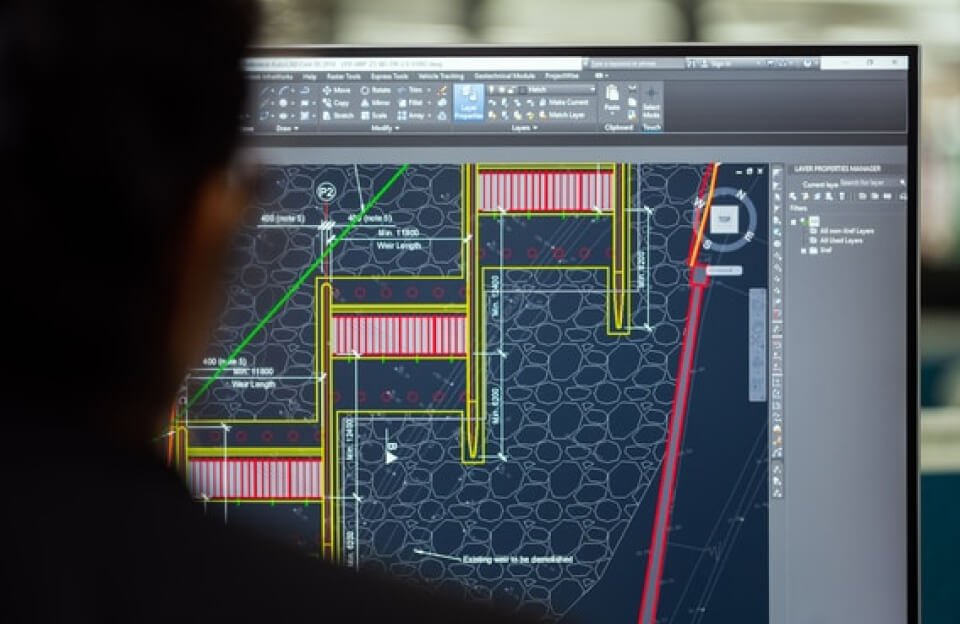
Understanding CAD Software
Computer-Aided Design (CAD) software has transformed the landscape of design across multiple industries, including architecture, engineering, and manufacturing. CAD applications enable professionals to create detailed 2D and 3D models, thereby facilitating superior visualization and communication of their design concepts. As a result, CAD software significantly reduces design errors and enhances productivity, contributing to more accurate outcomes.
The significance of CAD software lies in its ability to streamline the design process. Traditional drafting techniques often involve intricate hand-drawn sketches, which can be time-consuming and susceptible to errors. In contrast, CAD software empowers users to create precise digital models, allowing for easy modifications and rapid iterations. This shift towards digital design enhances operational efficiency, as changes can be implemented swiftly without the need for extensive rework.
Popular CAD programs such as AutoCAD and SolidWorks offer robust functionalities tailored to specific industry needs. AutoCAD, renowned for its comprehensive 2D drafting and 3D modeling capabilities, is widely adopted in various fields, including architecture and civil engineering. Its user-friendly interface and extensive library of design tools make it accessible to professionals at every level.
On the other hand, SolidWorks excels in providing tools tailored for mechanical design and engineering. It incorporates simulation features that allow users to test their designs’ performance under various conditions, ensuring that engineers can produce reliable products. Both AutoCAD and SolidWorks exemplify how CAD technology fosters innovation and efficiency in design processes.
Ultimately, CAD software is not just a tool; it has become a critical companion for professionals in design-related fields, driving forward advancements and improvements in the quality and productivity of their work.
The Importance of Shortcuts in CAD
Learning the intricacies of Computer-Aided Design (CAD) software can be a daunting task for many users, especially beginners. One of the critical ways to enhance efficiency and streamline workflows is by mastering the use of shortcuts. Shortcuts in CAD not only save time but also enable users to execute commands with greater ease. In an industry where precision and speedy execution are paramount, the significance of shortcuts cannot be overstated.
One of the primary challenges faced by beginners is the steep learning curve associated with CAD software functionalities. With numerous tools and commands available, it can be overwhelming to navigate the interface effectively. By incorporating keyboard shortcuts, users can bypass several mouse clicks and menu navigations, thereby reducing the time needed to complete tasks. This reduction in task duration directly correlates with increased productivity, allowing users to focus on design quality rather than spending excessive time on software navigation.
Moreover, employing shortcuts fosters better workflow organization. As users become more familiar with the commands associated with their projects, they can perform actions with increased accuracy and speed. Consistency in using these shortcuts contributes to a more fluid working environment, which is essential for maintaining momentum on design projects. For instance, regular use of the same set of shortcuts can help reinforce muscle memory, making commands second nature over time.
The adoption of shortcuts also plays a crucial role in collaboration. In many cases, multiple users will work on the same CAD files, necessitating seamless communication and hand-offs. When team members are proficient in using common shortcuts, it aids in reducing frustration and miscommunication, ensuring that the design processes are efficient from start to finish. Hence, as budding CAD users hone their skills, emphasis on shortcut proficiency should become a core part of their learning journey.
Essential CAD Shortcuts You Should Know
In the realm of Computer-Aided Design (CAD), efficiency can significantly enhance a designer’s productivity. Mastering essential CAD shortcuts facilitates quicker navigation and execution of tasks, ultimately streamlining the design process. Below are some fundamental shortcuts for popular CAD software applications, along with explanations of their functions.
AutoCAD: In AutoCAD, the “L” key activates the line command, allowing users to draw straight lines rapidly. The “C” key enables the circle command, simplifying the process of creating circular geometries. Additionally, the “E” key activates the erase command, which is essential for removing unwanted lines or objects efficiently.
SolidWorks: For SolidWorks users, the “S” key brings up the shortcut bar, providing quick access to frequently used tools. The “M” key allows for moving selected components easily, while the “Ctrl + Z” combination serves as a quick way to undo the last action, which can be invaluable during complex design tasks.
SketchUp: In SketchUp, shortcuts such as “L” for line drawing and “R” for rectangle generation enhance speed in modeling. The “M” shortcut enables the move tool, allowing for straightforward object repositioning, which is critical during the design phase.
Practicing these shortcuts will not only make your navigation within CAD software more intuitive but will also help in developing muscle memory for your workflow. Incorporating these shortcuts into your daily practice can lead to a more efficient and effective design experience. As you become more familiar with your chosen software, consider exploring additional shortcuts that can further optimize your work and save precious time.
Tips for Mastering CAD Shortcuts
Mastering CAD shortcuts can significantly enhance a designer’s efficiency and productivity. To facilitate this learning process, implementing a few best practices is essential. One of the most effective strategies is to customize your shortcuts according to your workflow preferences. Many CAD programs allow users to assign specific key combinations to frequently used commands. By personalizing these shortcuts, you align them with your working style, making them easier to recall during projects.
Regular practice is another critical element in mastering CAD shortcuts. Setting aside dedicated time to focus solely on using shortcuts can help reinforce your learning. Consider integrating shortcuts into daily tasks, thereby fostering muscle memory. As you become accustomed to pressing a combination of keys instead of navigating through menus, you will notice a natural improvement in your efficiency. Additionally, practicing with real projects will provide context, making the learning process more relevant and easier to grasp.
Utilizing resources such as cheat sheets can also be beneficial. Creating or downloading a list of commonly used shortcuts allows quick reference, which can save time when you’re starting or learning a new software version. Online tutorials can further enhance your understanding. Many resources are available that demonstrate the practical application of shortcuts, allowing you to watch and learn from experienced users.
Lastly, engaging with online communities and forums can provide insight and tips on shortcut mastery. Other users may share their experiences and strategies, offering a broader perspective on using shortcuts effectively. Implementing these strategies will pave the way for improved skills in using CAD software efficiently.